
THE CMS JOURNEY
From a new page
to published content.
Walk through the real CMS screens for pages, versions, sections, components and publishing. The Northbank Studio demo shows how the content and the design come together.
Real deployed app screens · fictional demonstration data · click through each stage.
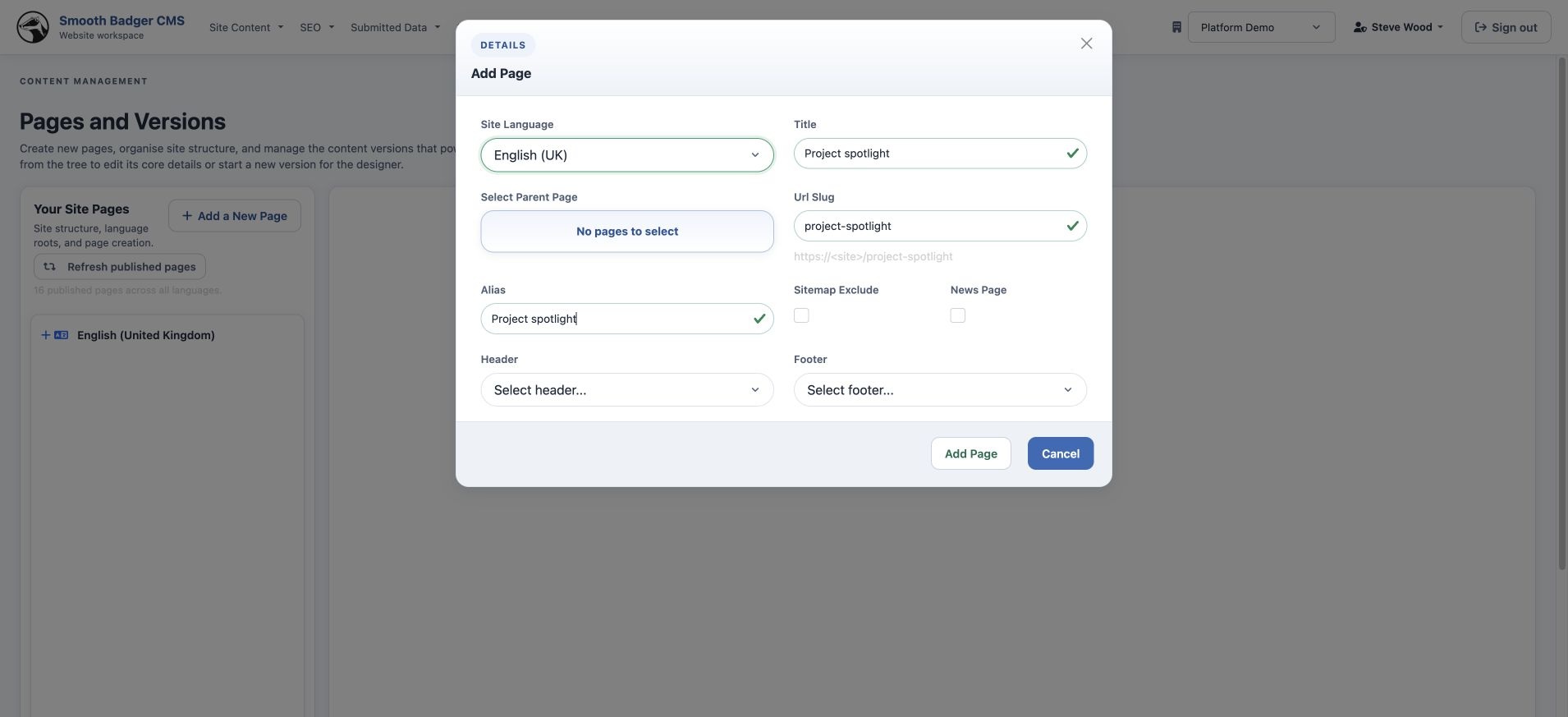
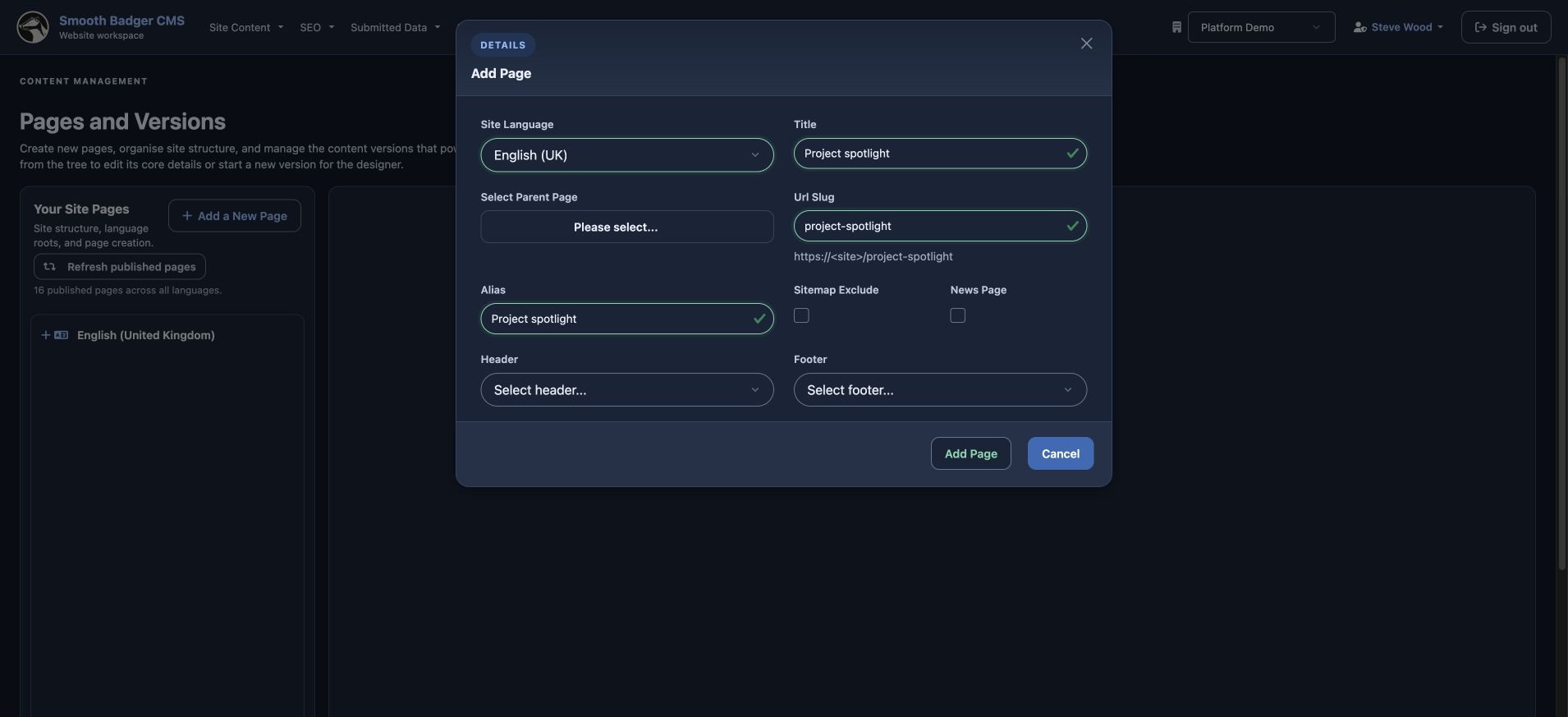
Add a page
Set the page title, language and URL. Choose its place in the site and any shared header and footer.
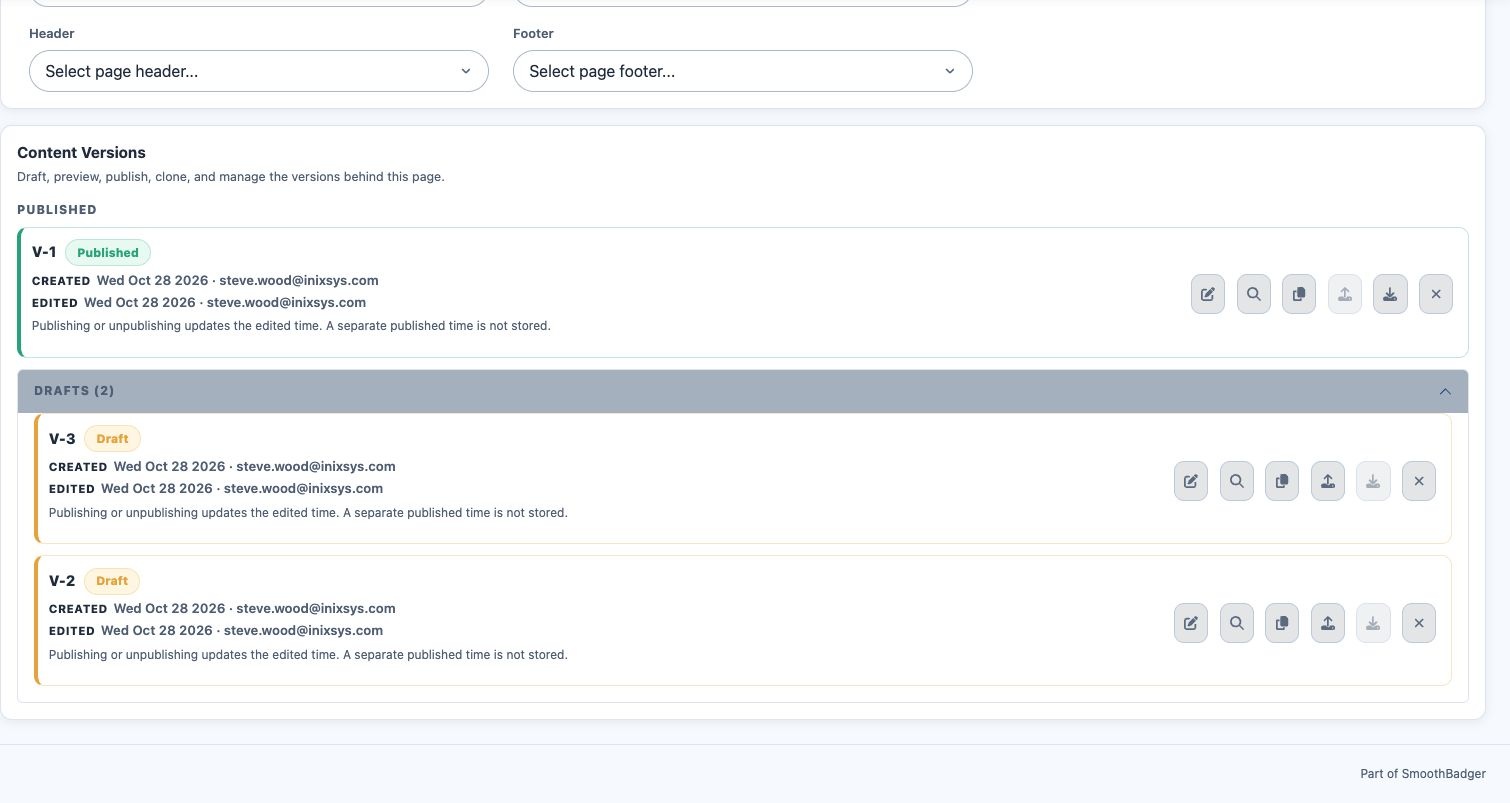
Create a content version
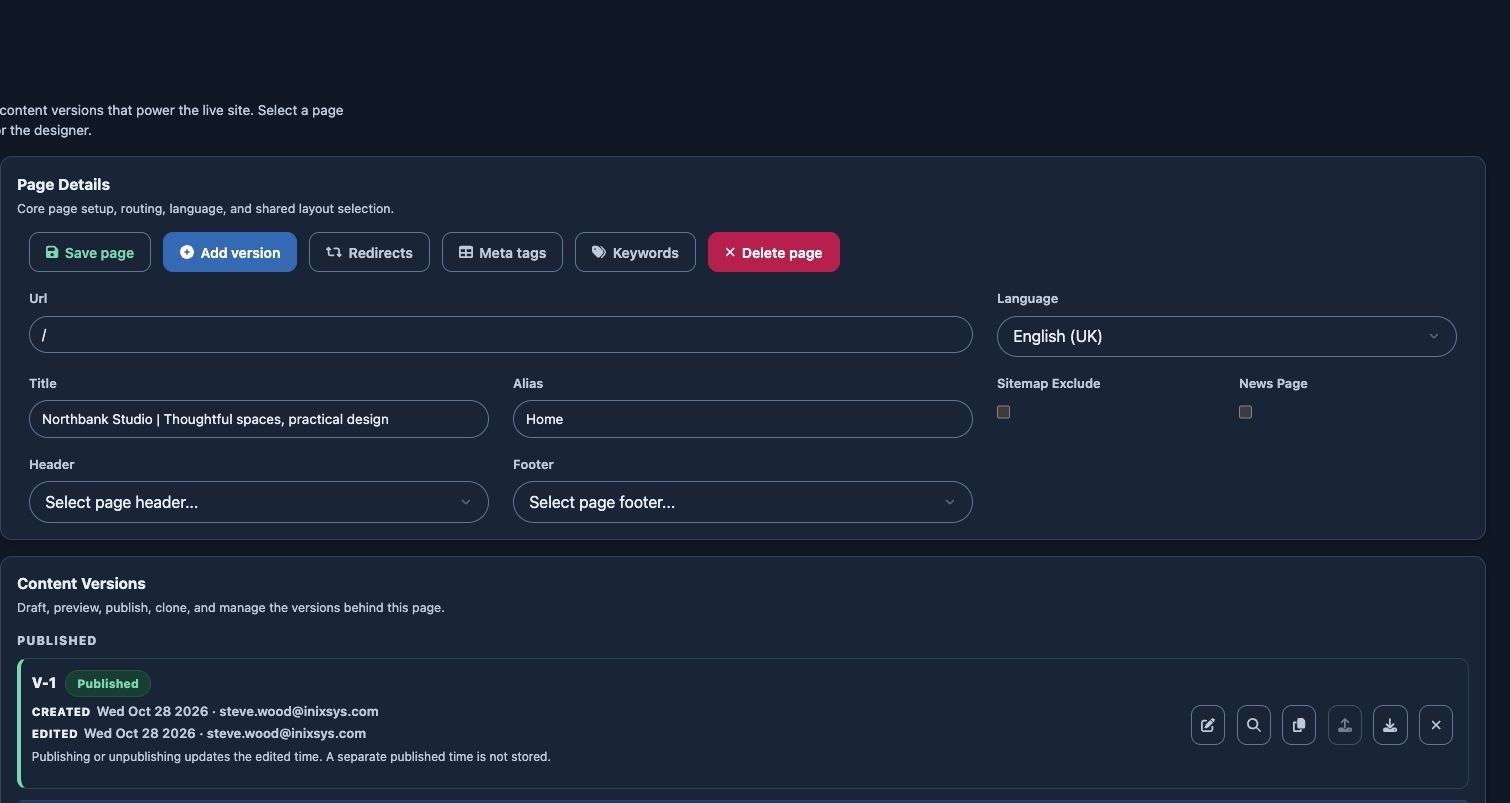
Manage the versions behind the page. Add a draft or clone a version to prepare the next change.
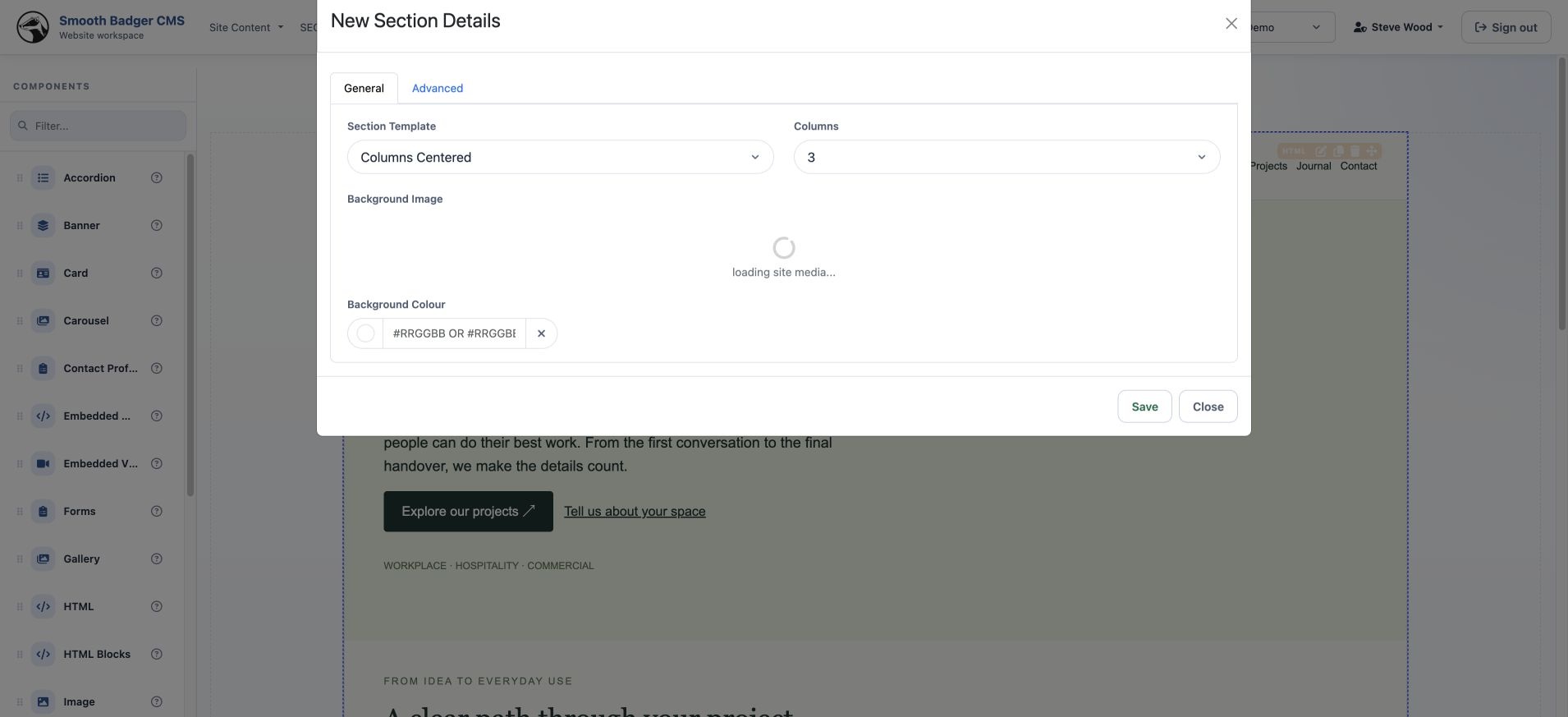
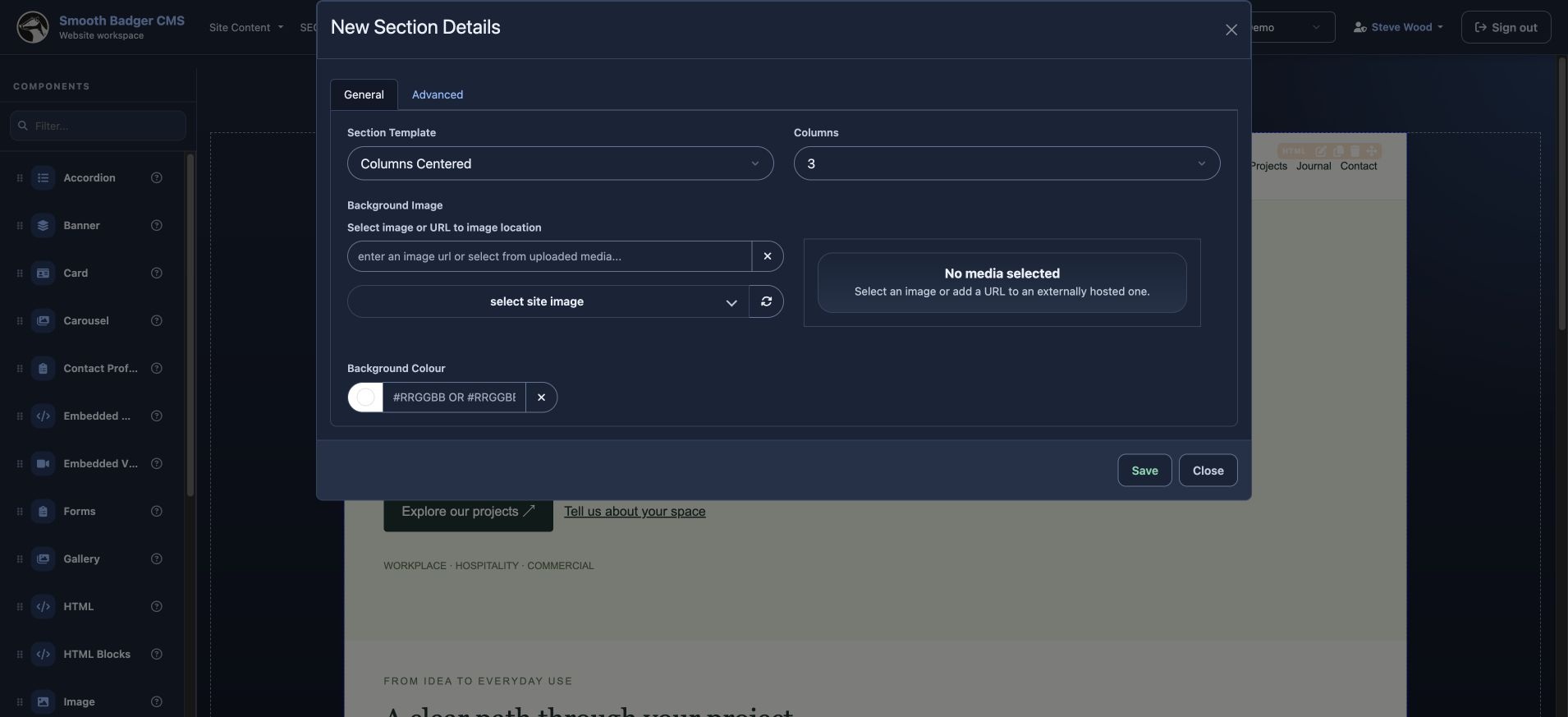
Add a section
Choose the section layout and number of columns. Sections give the page a structure for the content that follows.
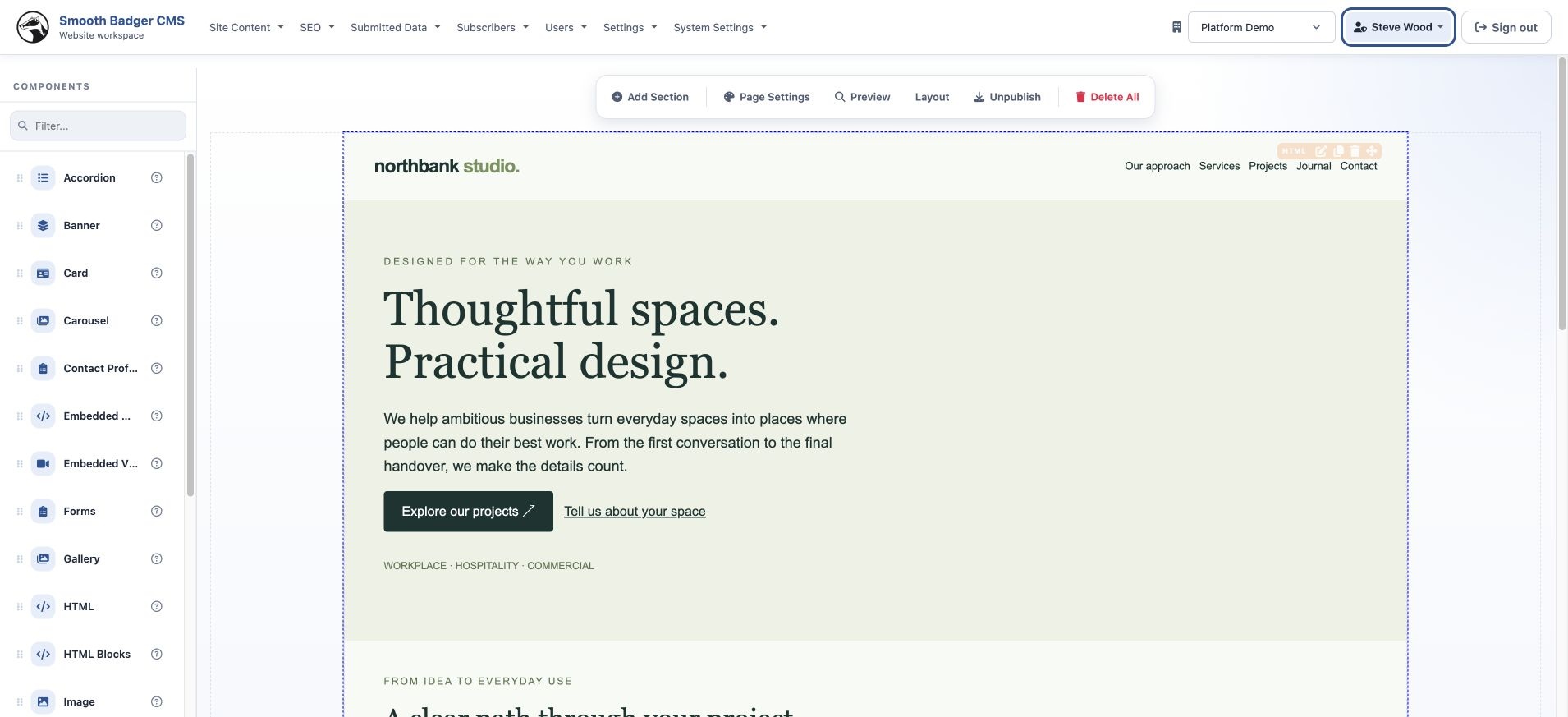
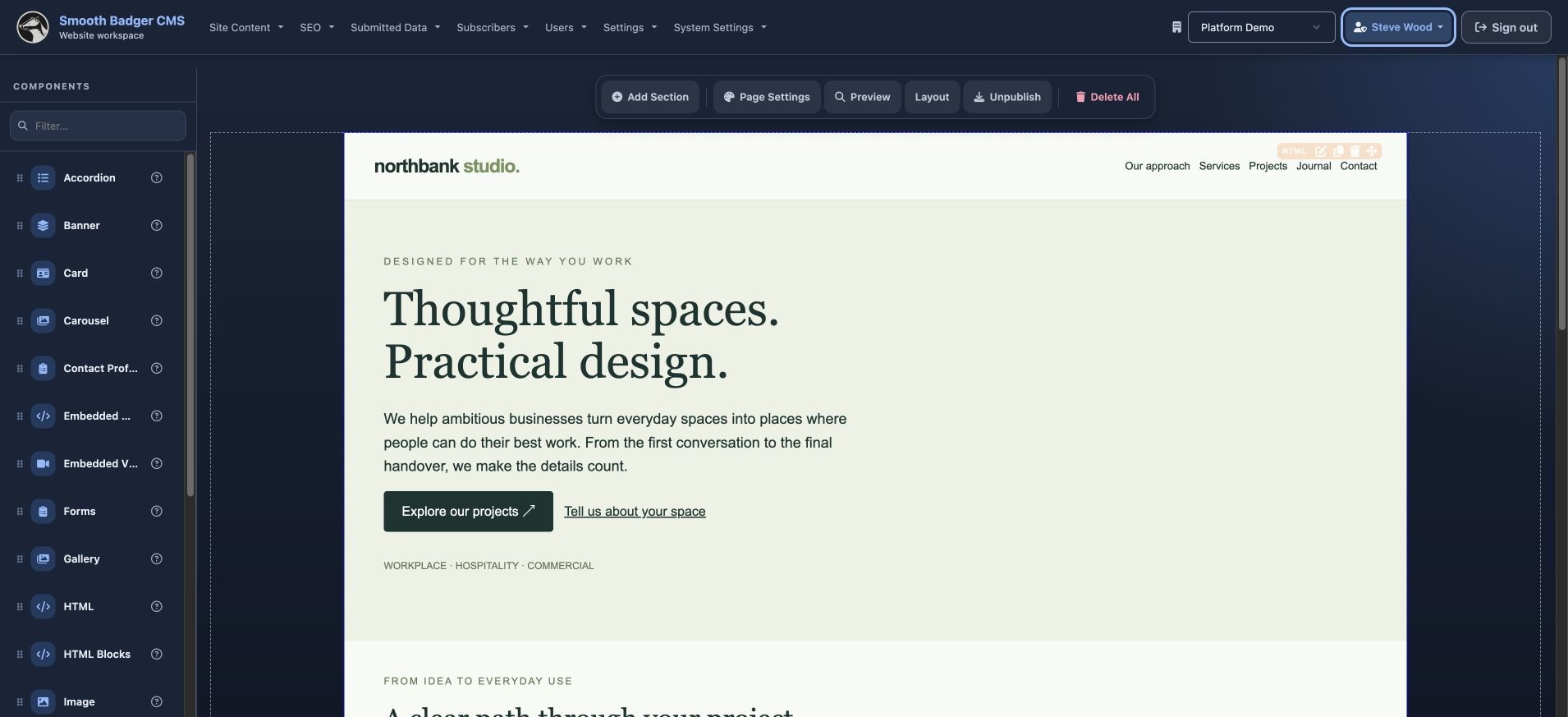
Choose and arrange components
Use the component palette and page designer to build the page. Add the blocks needed for the story and arrange them in sections.
Edit the content
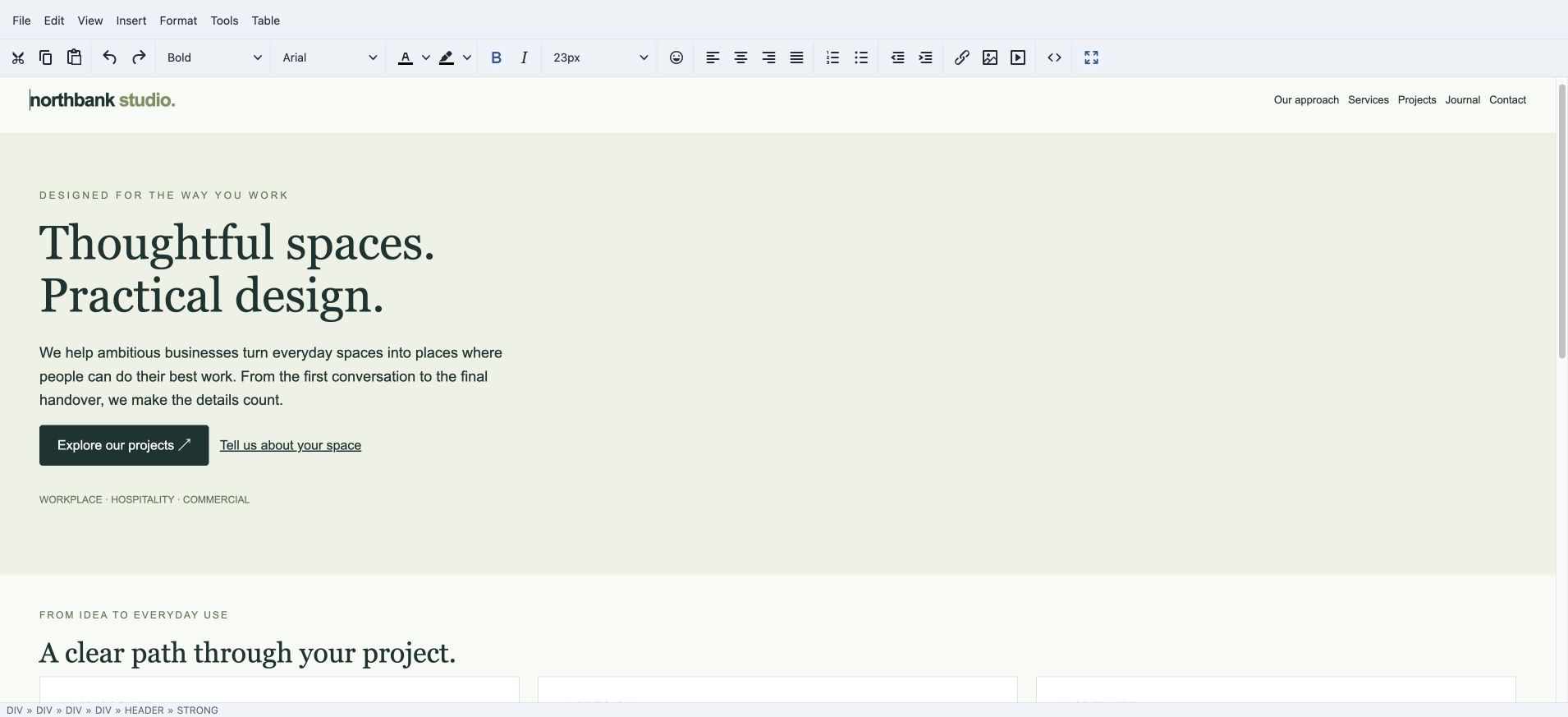
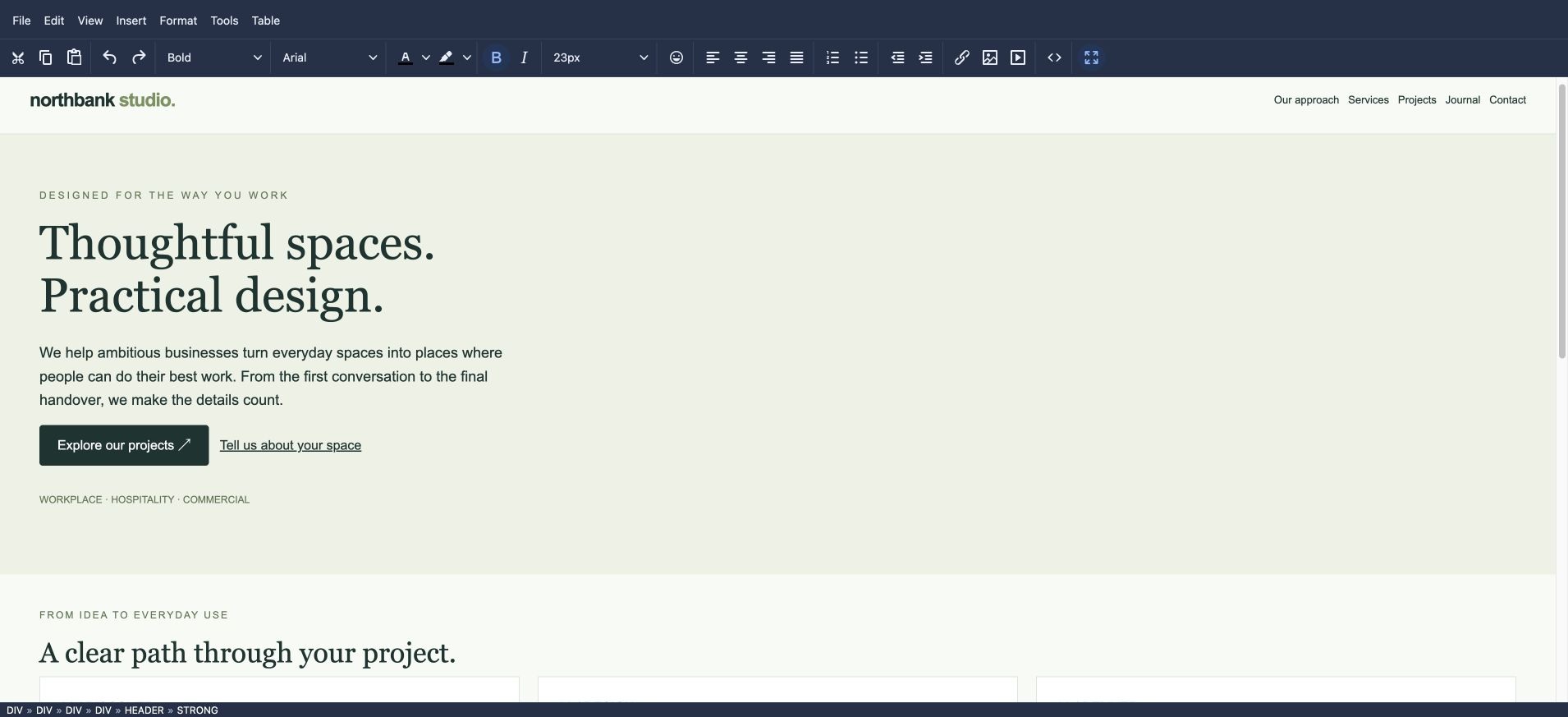
Open a component’s editor and work on the words, links and presentation. Full-screen editing gives longer content room to breathe.
Choose your media
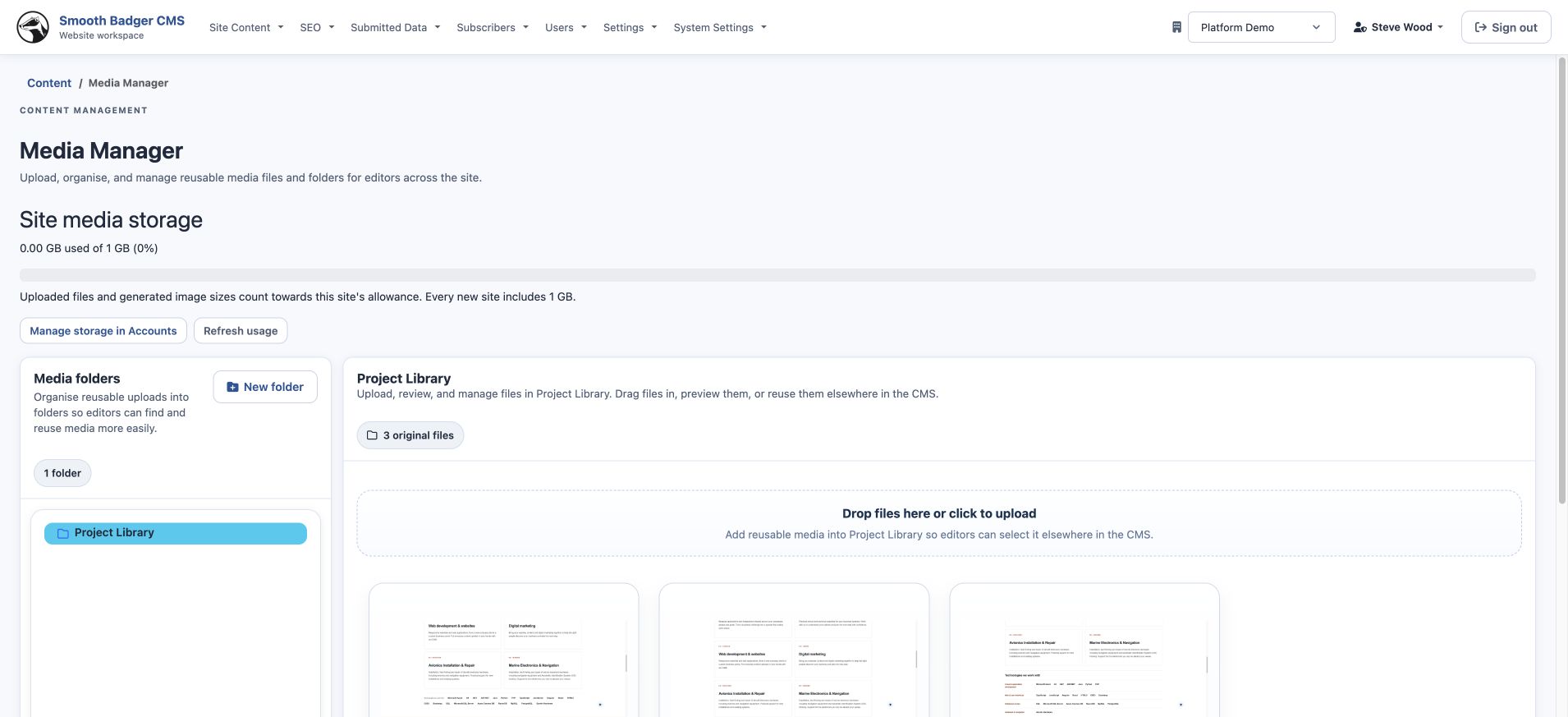
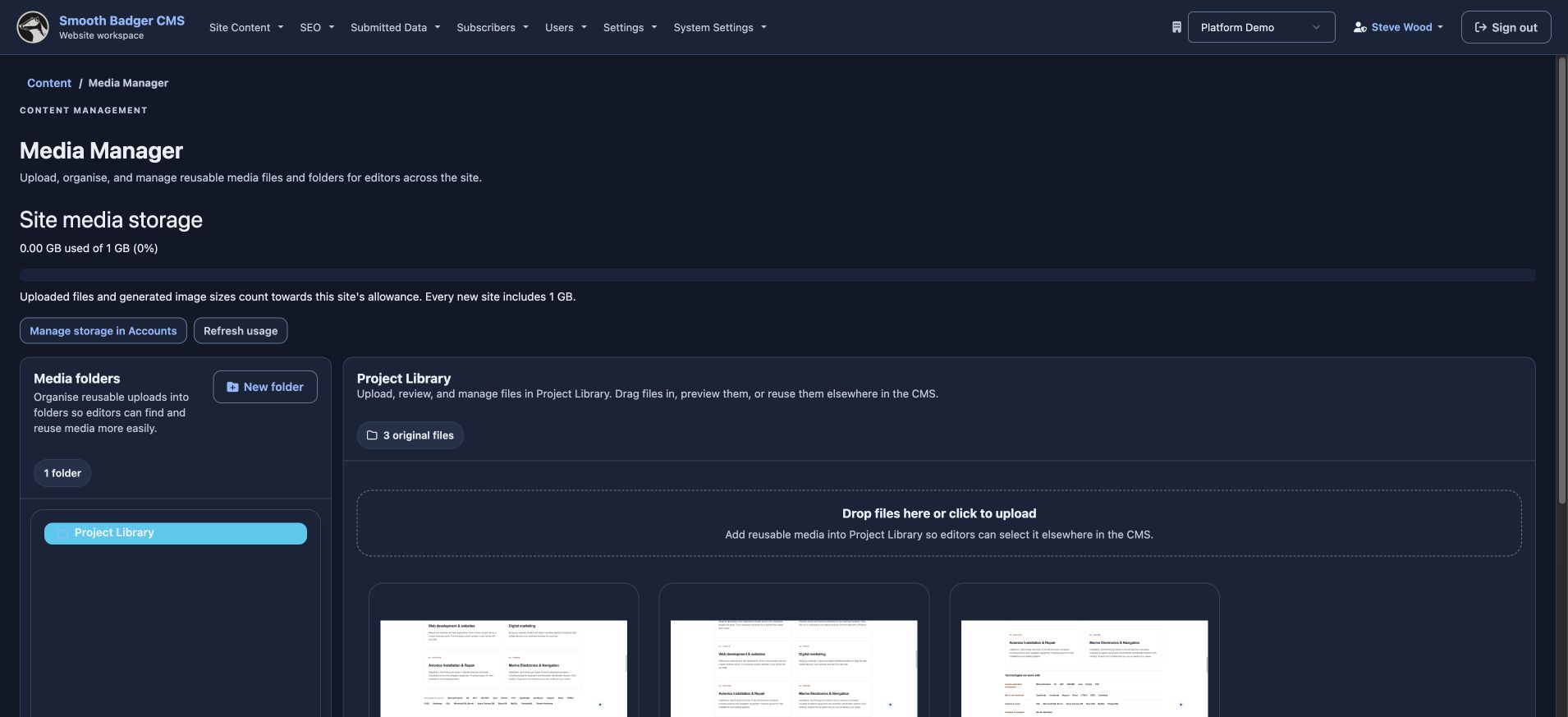
Keep reusable images and files organised in Media Manager, then select the assets that belong with the page.
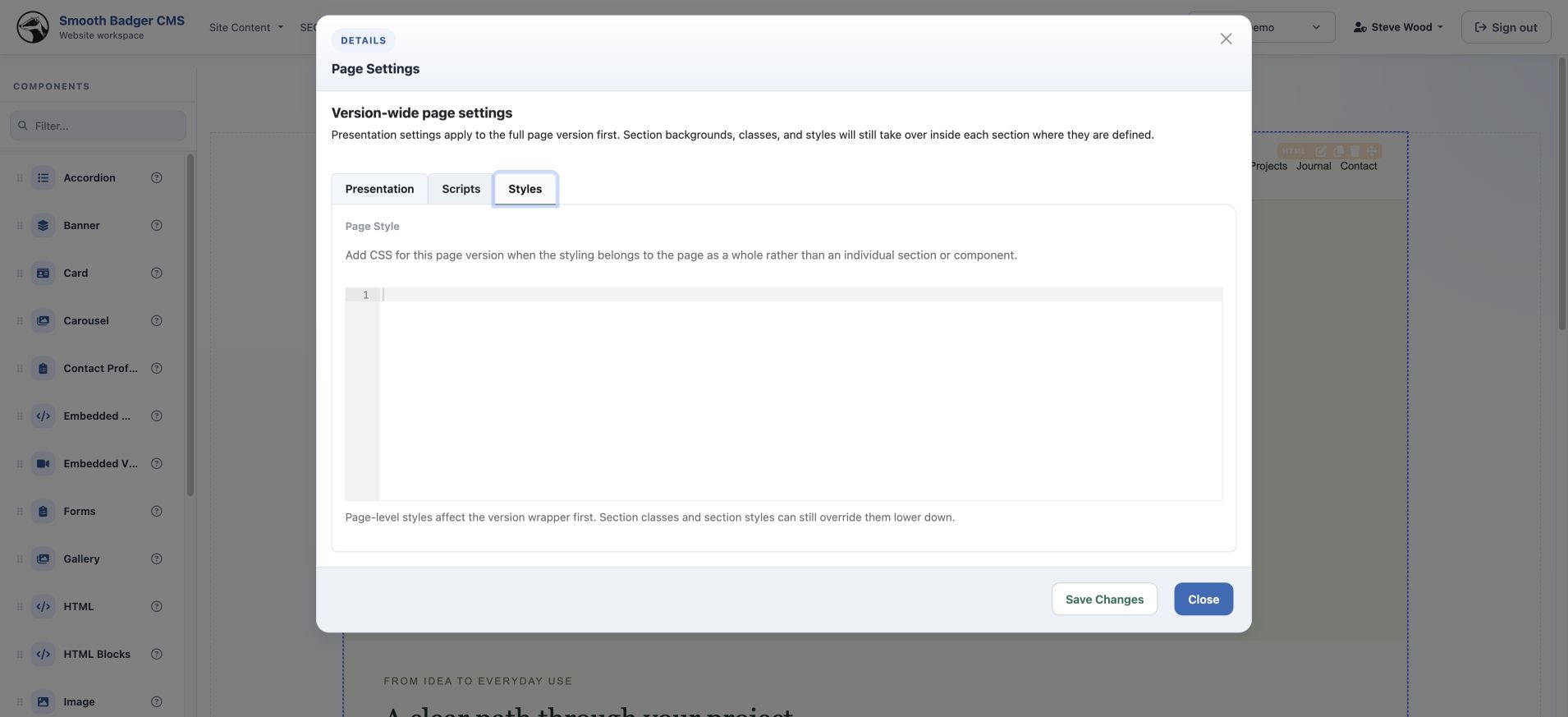
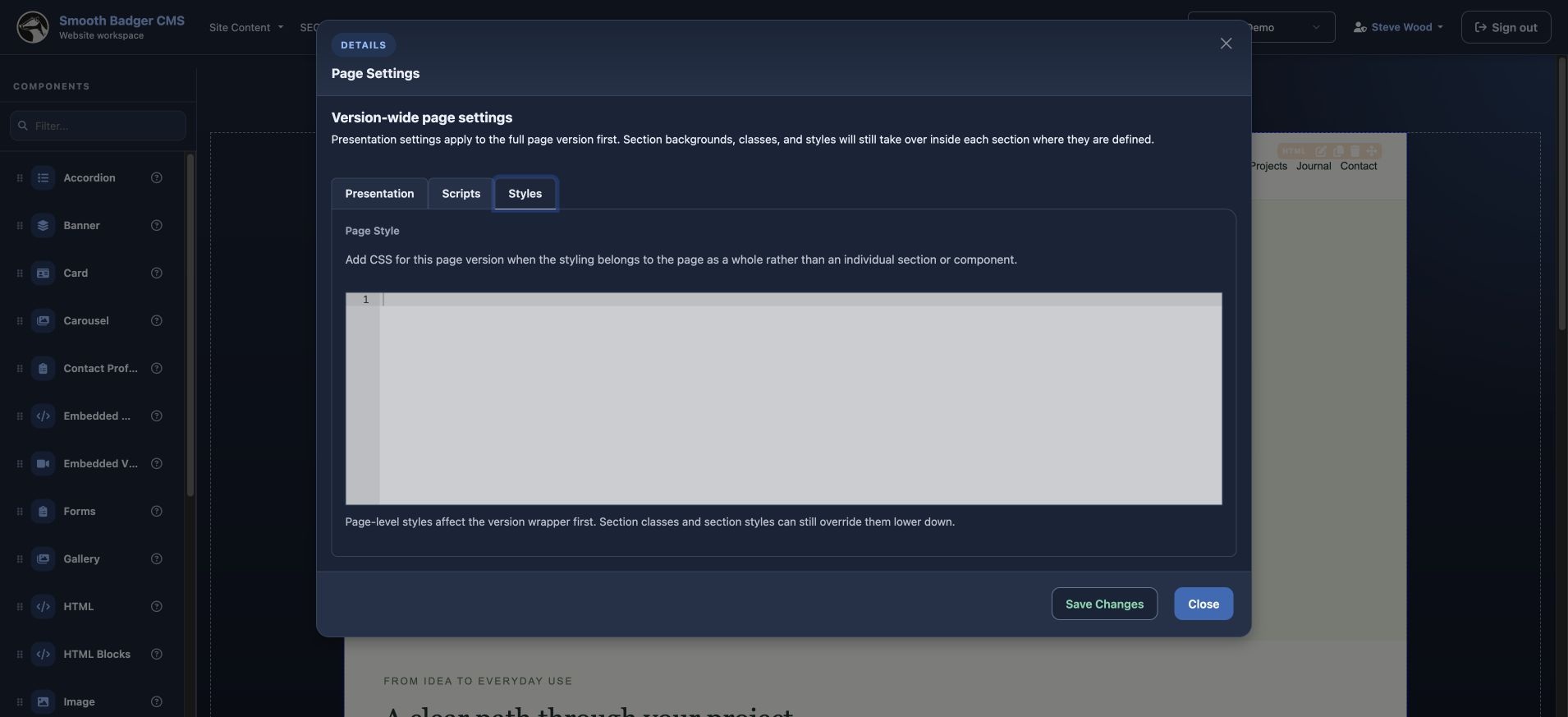
Add custom styles or JavaScript
Use Page Settings when a page needs its own design or behaviour. CMS also supports custom styles and JavaScript globally and at section level.
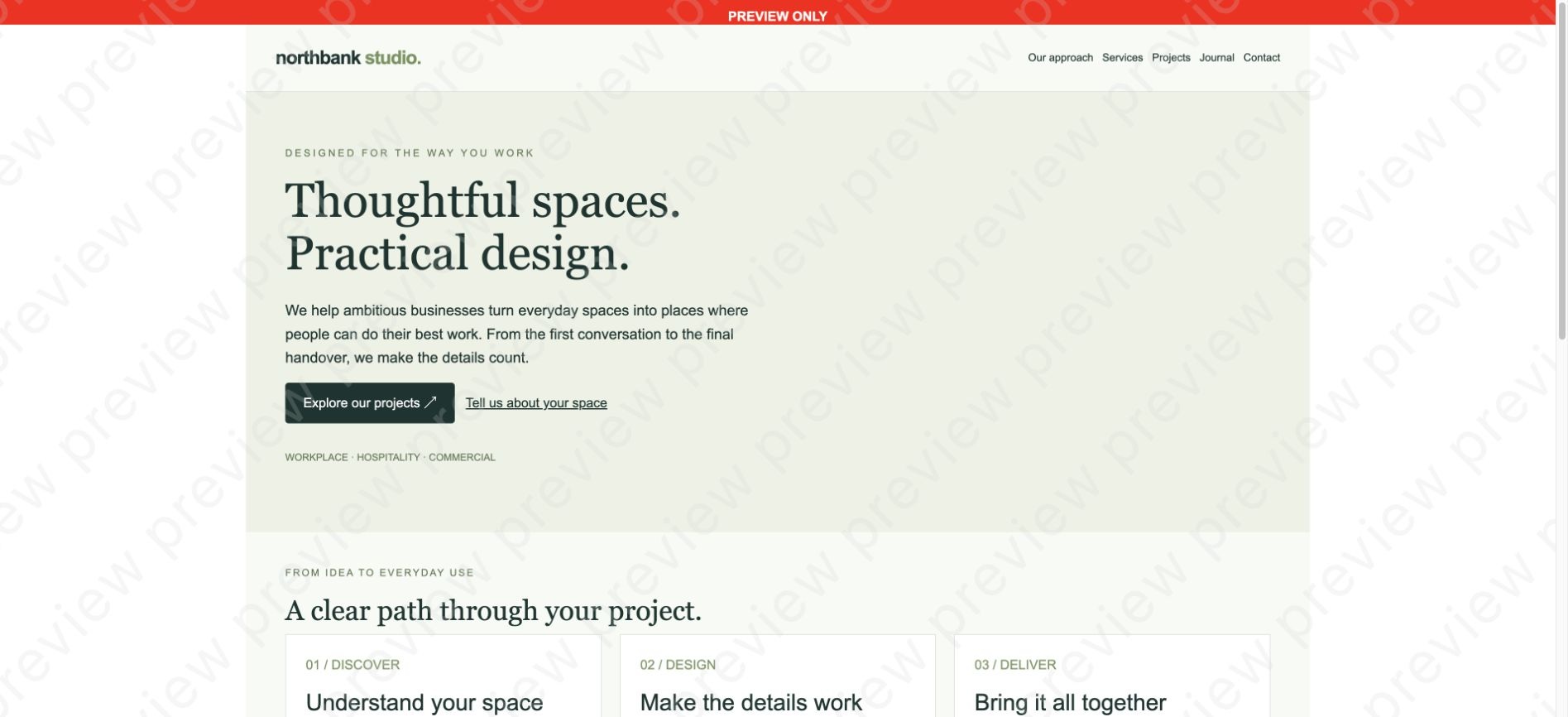
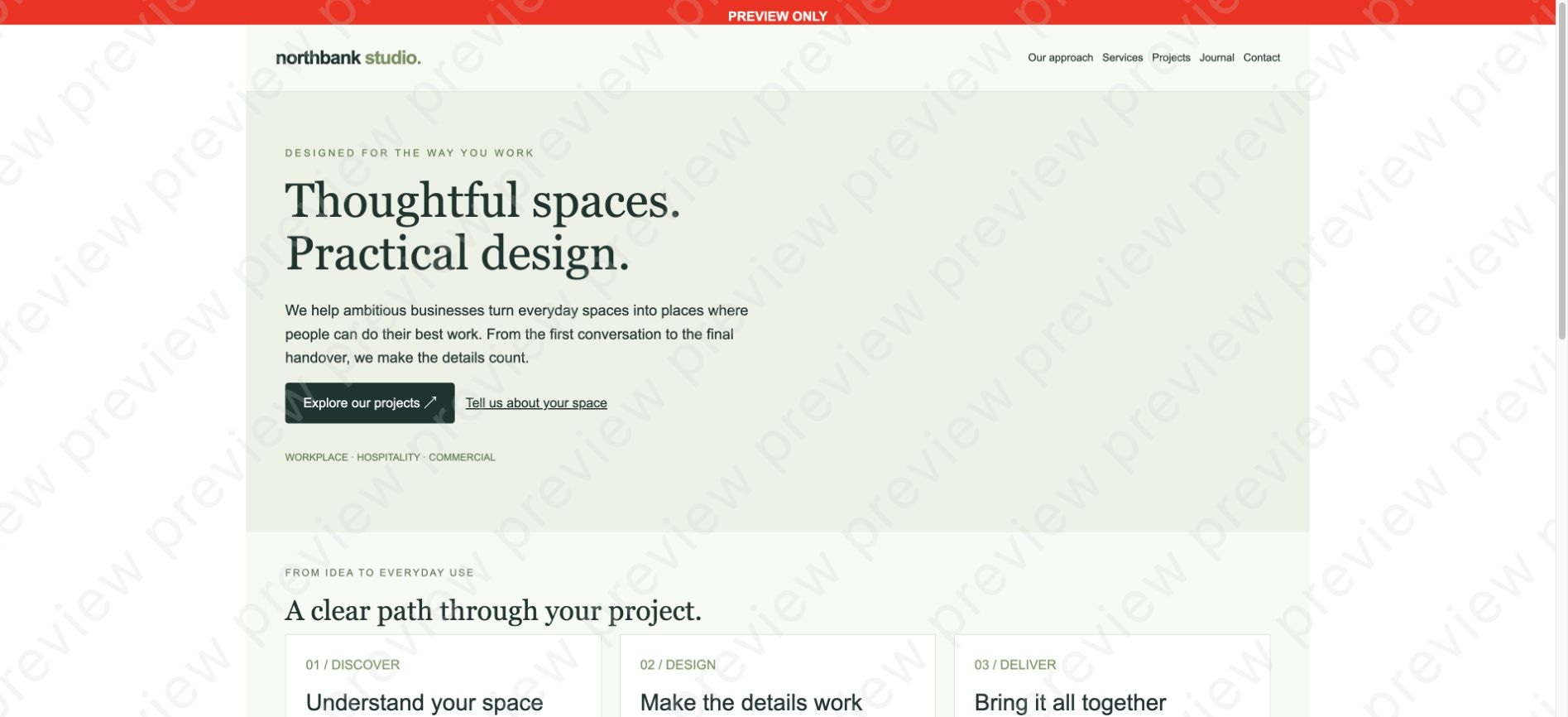
Preview the result
Check the rendered page before publishing. The website preview uses the site’s design, independently of the CMS workspace theme.
Publish the reviewed version
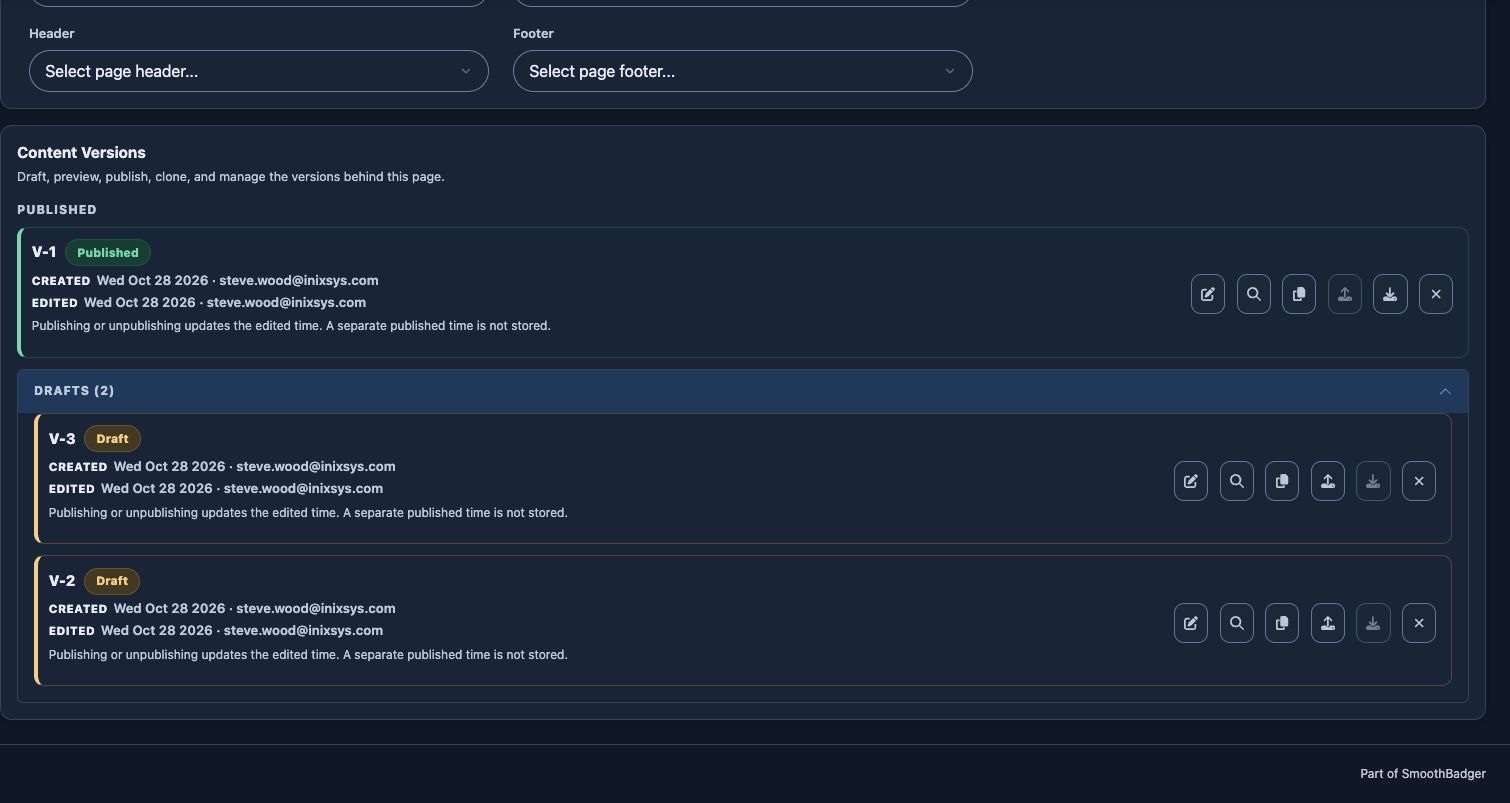
Choose the version that is ready for visitors and publish it. The version list makes the published page and remaining drafts visible.
See how the work
fits together.
You have followed the real CMS screens through the process. Talk with us about how the workspace could fit your business.
Arrange a walkthrough ↗EXPLORE THE WHOLE PLATFORM